Applies to: All tiers · Last reviewed: 2026-10-11
What this is
A move relocates stock from one location to another inside a warehouse. On-hand totals do not change, only where the units live. Use it for putaway, consolidating bins, or freeing pick faces. It lives at Inventory > Move Inventory.
Pick how you want to move
Move Inventory has four tabs for different situations:
- Single product: move one SKU from a bin to another bin.
- Multi-line: move several products out of one bin, each to the bin you choose for it.
- Whole bin: move everything in a bin to another bin in one step.
- CSV relocate: many moves from an uploaded file.
Move a single product
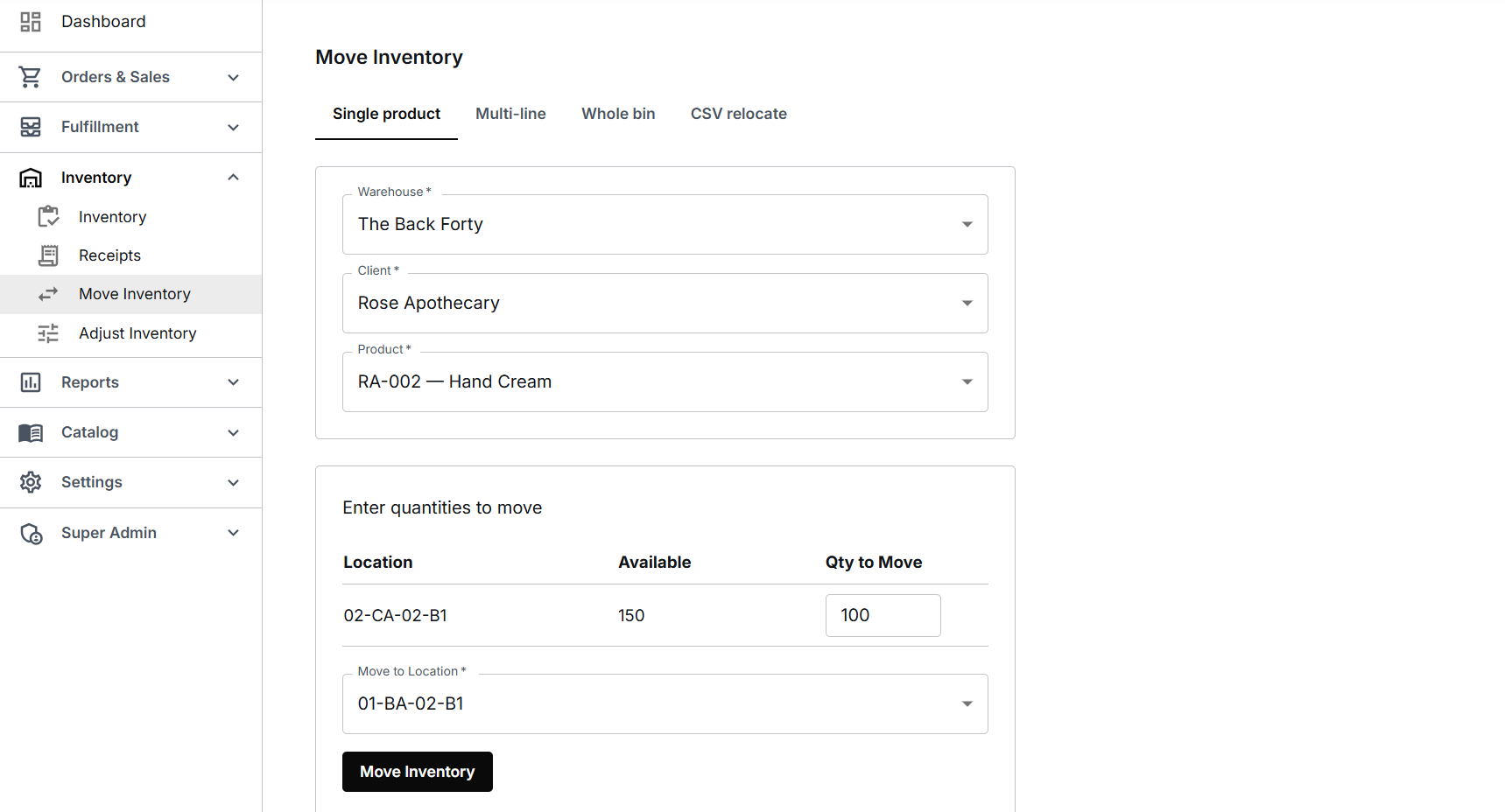
- Go to Inventory > Move Inventory and stay on the Single product tab.
- Choose the Warehouse, then the Client that owns the stock, then the Product: type the SKU or scan the barcode and pick it from the list.
- CanShip lists each bin that holds the product, with its On hand and Allocated quantities. Type the quantity in the Qty to Move box beside the bin you are taking from.
- Choose the Move to Location. The list shows what each bin already holds and marks overstock bins.
- Click Move Inventory. CanShip confirms the quantity, the SKU and both bins.
Move several products out of one bin
- On the Multi-line tab choose the Warehouse, the Client and the Source location.
- On each line choose a Product from that bin, its Destination and the Quantity. Each line has its own destination. Add line adds another.
- Click the Move button, which counts the lines, for example Move 2 lines.
Move a whole bin
On the Whole bin tab choose the Warehouse, the From bin and the To bin. Everything in the bin moves. There is no client to choose on this tab. Under Bin contents CanShip lists each product in the bin with its on-hand and allocated quantities, one line per box and one for loose stock (the Unit column names the box), and names the orders whose allocations move with the stock. Click Move entire bin. When orders' allocations move with the stock, CanShip asks once and says which bin those orders will pick from. Otherwise it moves everything at once and says how many units moved, for example Moved everything in ZZ-FIFO-E to 02-DA-02-B3: 12 units of 1 product.
Move from a CSV file
On the CSV relocate tab click Import CSV. Choose the Warehouse and the Client, then choose your file. The file needs four columns: sku, from_location, to_location and quantity. CanShip shows each row and whether it is ready. Click Import, and it reports how many rows moved. A row CanShip cannot match, for example a SKU it does not find for that client, is marked Error in the preview with the reason and is left out. The rows that are ready are still imported.
What a move changes, and what it does not
- A move does not change how much stock the warehouse holds, only which bin it is in.
- You can move up to the bin's on-hand quantity, allocated units included. The on-hand figure is the whole bin, boxes and loose stock together; type more and CanShip says the most you can move, for example Max 55 on hand. Units moved out of a bin that also holds boxes come from its loose stock first, then from an opened box. Units taken from a box keep its label in the new bin, and moving them back puts them in the same box again. When a move takes units that are allocated to an order, the allocation moves with them, so the order picks from the new bin.
- A lot tracked product keeps its lot number and expiry date when it moves.
- When the last unit leaves a bin, the bin no longer lists that product.
- CanShip tells you when the destination is not a pickable bin, for example overstock.
- Every move is recorded in Reports > Audit Trail: one row for the bin the stock left and one for the bin it reached, at the same time, with the source Move, who made it and, in Detail, where the units went. When allocations move, they get two rows of their own, written in the same second and naming the order. See Reports, and the inventory Audit Trail.
Tips
- Use Whole bin when you are clearing or relabelling a bin. It is faster than moving SKUs one at a time.
- Use CSV relocate after a large reslotting: prepare the file once and apply every move together.
Was this article helpful?
That’s Great!
Thank you for your feedback
Sorry! We couldn't be helpful
Thank you for your feedback
Feedback sent
We appreciate your effort and will try to fix the article