Last reviewed: 2026-10-07
What this is
The full setup for a Shopify store that ships from a CanShip warehouse: connect the store, choose the warehouse, stock your products at the CanShip location, add that location to your shipping rates, and check it with a test order. Shopify has two screens for shipping rates, and a store shows one or the other. Step 4 covers both.
Before you start
- You need a CanShip login that can open Integrations > Channels, and a Shopify login that can install apps and edit products, shipping and Markets.
- Have the store's myshopify.com domain to hand.
- Every product CanShip will ship needs a SKU in Shopify. Products without one are not synced.
1. Connect the store
- In CanShip, go to Integrations > Channels and click New Channel, then Shopify Store.
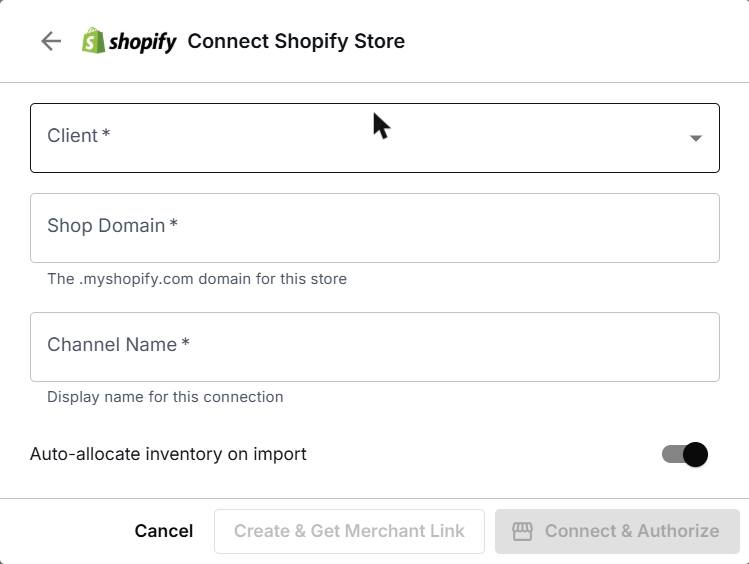
- Choose the Client the store belongs to. Enter the store's myshopify.com domain and a name for the channel.
- Leave Auto-allocate inventory on import on if you want stock reserved for each order as it arrives.
- Click Connect & Authorize. Shopify lists what the app will access. Click Install.
- Shopify shows a Store connected page. Click Continue to CanShip.
The store now has a card under Connected Stores that reads Connected.
If someone else holds the Shopify login, click Create & Get Merchant Link in place of Connect & Authorize and send them the link. The gear on the store's card has the same thing later, under Get install link: the store owner opens it, installs CanShip and approves the connection. The link works for 7 days and can be opened more than once.
2. Choose the warehouse
Until a warehouse is chosen, the store's card reads "No warehouses set up for this store yet" and its orders wait. Integrations Health lists them, and they can be imported once a warehouse is set up.

- On the store's card, click Set up. On a store that was set up earlier, the same dialog is under the gear, CanShip Locations.
- Keep CanShip locations, tick the warehouse that ships this store's orders, and click Save.
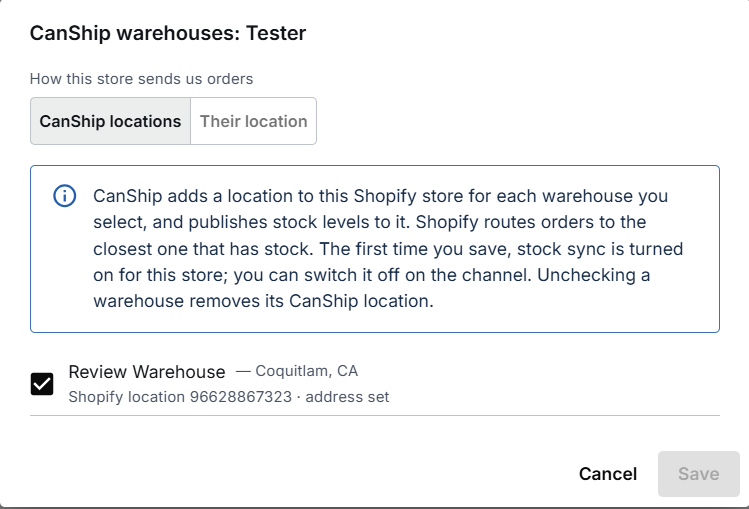
CanShip adds a location to your Shopify store for each warehouse you tick. Its name is CanShip followed by the warehouse name. Stock sync turns on with the first save, so CanShip publishes its stock counts to that location. Unticking a warehouse removes its location from the store, and the stock Shopify showed there goes with it: no other location of the store gains those units. If Shopify keeps the location, CanShip says so and keeps shipping from it. To untick every warehouse, turn off inventory sync for the store first. Ticking a warehouse again later adds a new location, and CanShip publishes its stock counts to it.
The other choice, Their location, is for a merchant who keeps their own Shopify location and has CanShip fulfil against it. CanShip adds nothing to that store, and its card reads Reading the store's own locations: there is nothing to set up in Shopify. This article follows CanShip locations.
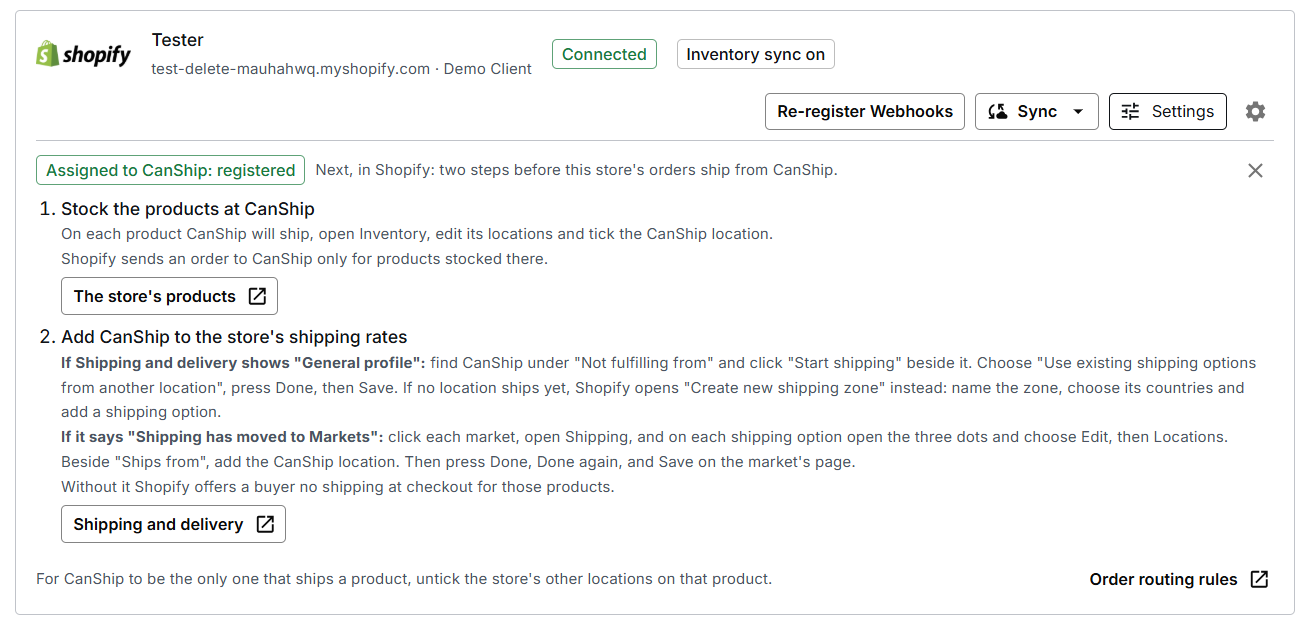
The card now shows Inventory sync on and lists the two Shopify steps that come next, which are steps 3 and 4 below. It has three shortcuts into your Shopify admin: The store's products, Shipping and delivery and Order routing rules.
3. Stock your products at the CanShip location
Do this in Shopify, for every product CanShip ships.
- Open the product.
- In its Inventory card, click the pencil beside Locations.
- Tick the CanShip location. Untick any location that should no longer ship this product.
- Click Save.
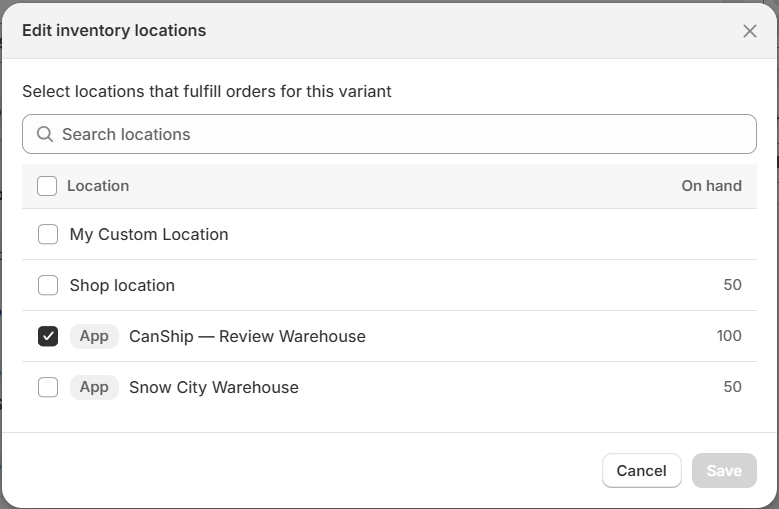
This is the step that decides where Shopify sends the order. In the Inventory card, a location that is not ticked shows an On hand number only. A ticked one also shows Available.
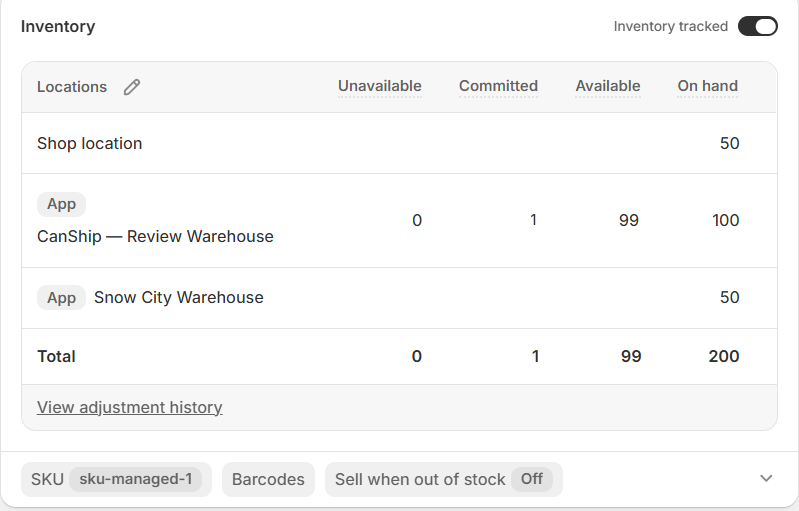
- The dialog reads "for this variant". On a product with several variants, check each one.
- If a product stays ticked at more than one location, Shopify's order routing rules choose which location gets each order.
4. Add the CanShip location to your shipping rates
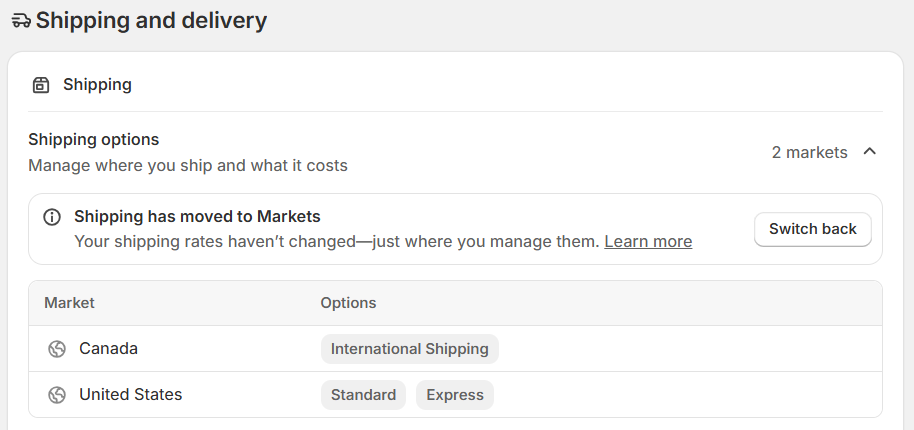
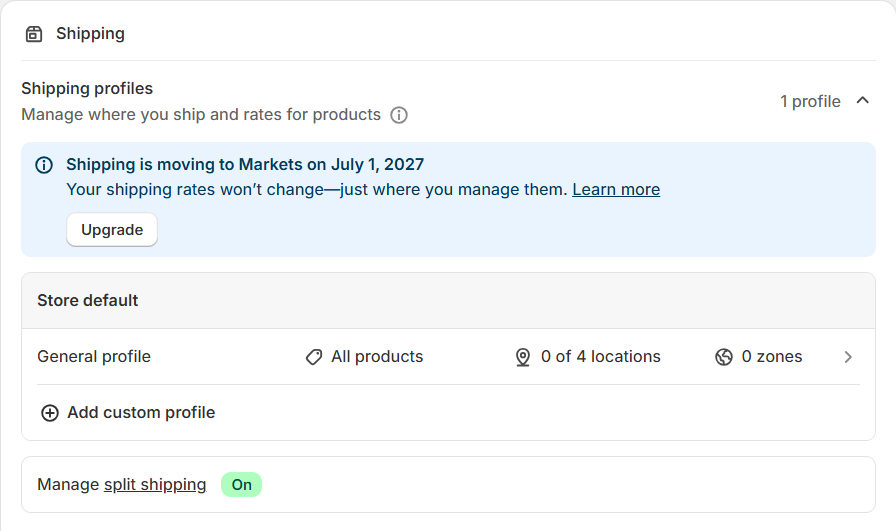
A product stocked only at the CanShip location gets no shipping rate at checkout until that location is on the rate. In Shopify, go to Settings > Shipping and delivery and look at the Shipping card.
- If it says "Shipping has moved to Markets" and lists markets under Shipping options, use the Markets way.
- If it shows Shipping profiles with a General profile, use the Shipping and delivery way. That screen carries a notice that shipping is moving to Markets, with an Upgrade button.
The Markets screen:
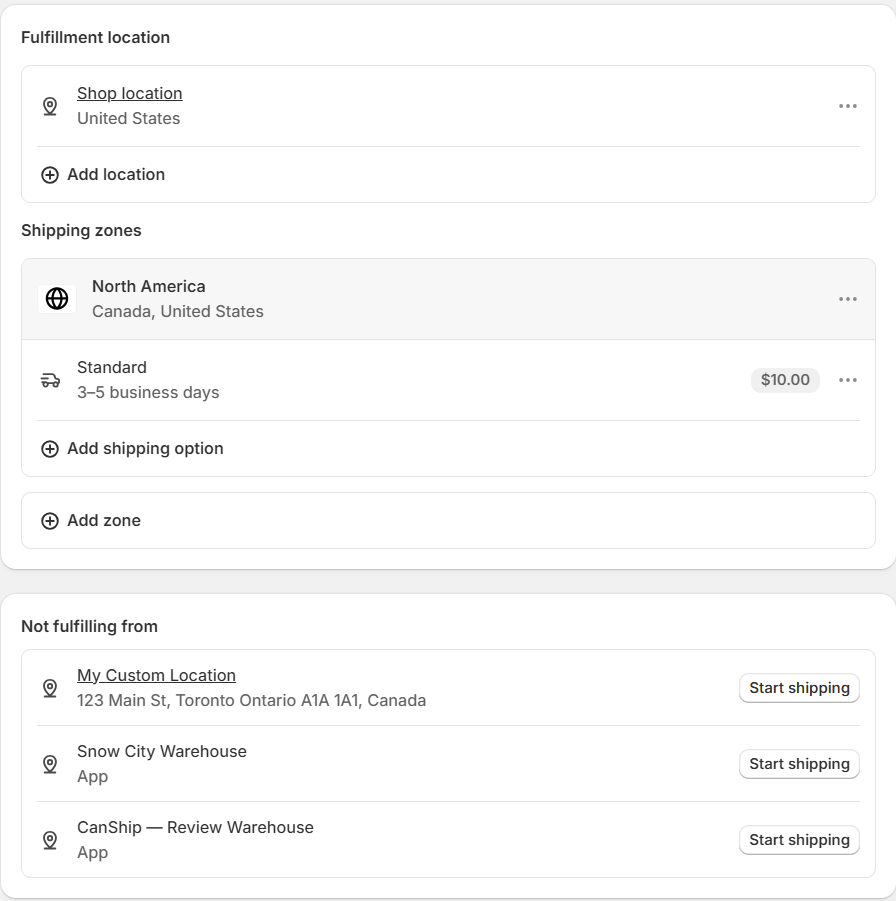
The Shipping and delivery screen:
The Markets way
Here shipping is set per market. Shopify's store defaults do not include shipping rates, so there is no one place to set it for every market. Do these steps in each market you sell to.
- Under Shipping options, click a market, for example United States. Markets in the main menu lists the same markets.
- On the market's page, click the Shipping dropdown. It lists the market's shipping options, each with the locations it ships from.
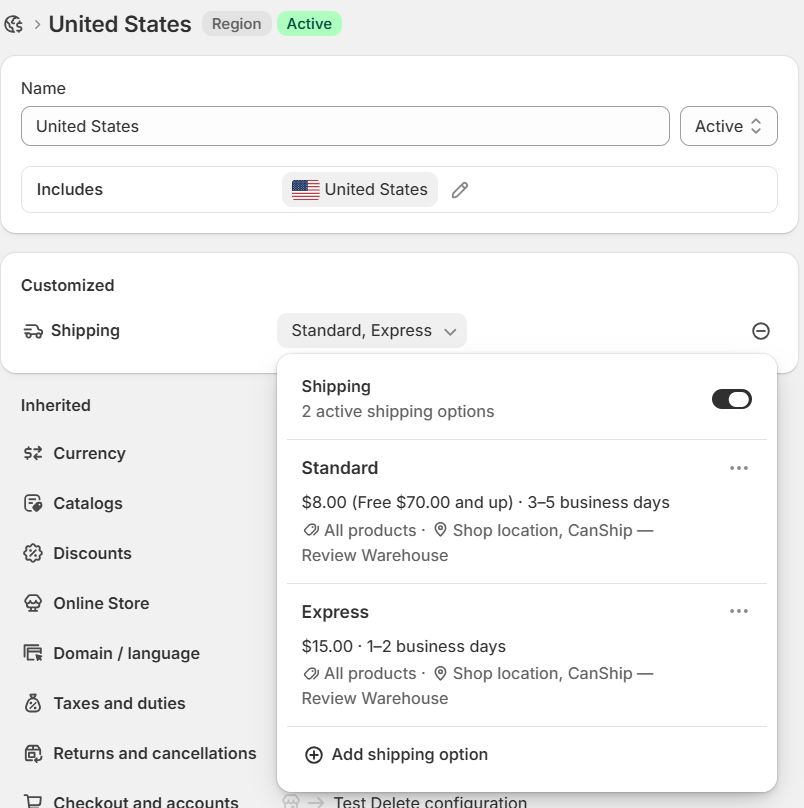
- On an option, click the three dots, then Edit.
- Click Locations. Under Conditions, beside Ships from, click the pencil, or Add locations if none is set.
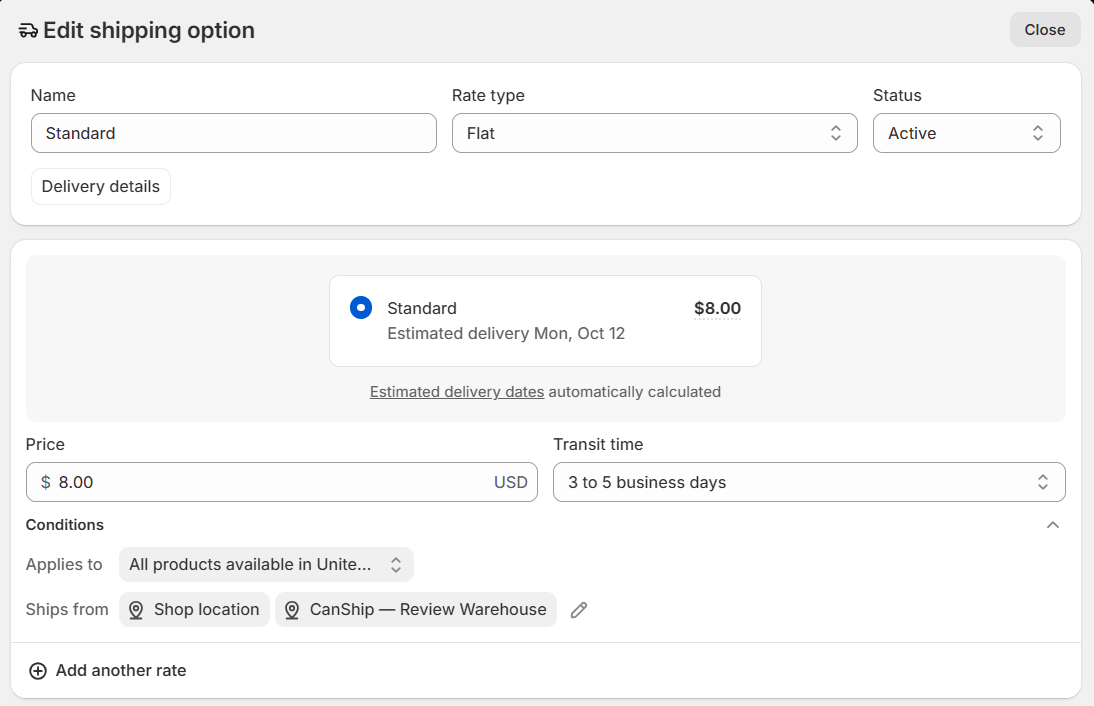
- Tick the CanShip location and click Done.
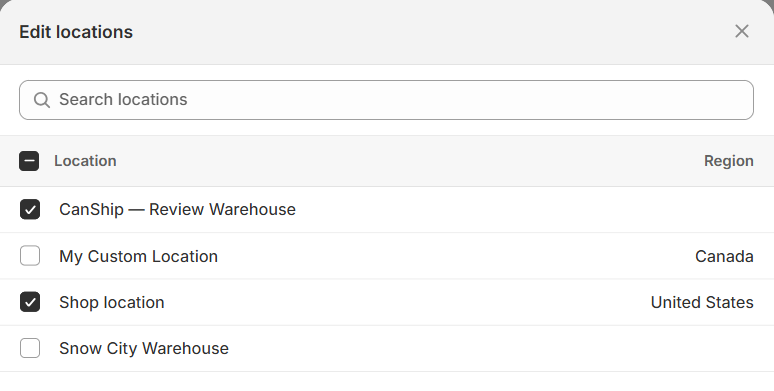
- Click Done at the top of the panel.
- Repeat for every shipping option in the market, then click Save.
- Repeat for each market you sell to.
Leave your own locations ticked if they still ship some of your products. An option that reads No locations needs one added in the same way. A market that reads Not shipping has no shipping option yet, so it needs one before the CanShip location can be added.
The Shipping and delivery way
- Open the General profile. If you use custom profiles, do the same in each profile that holds products CanShip ships.
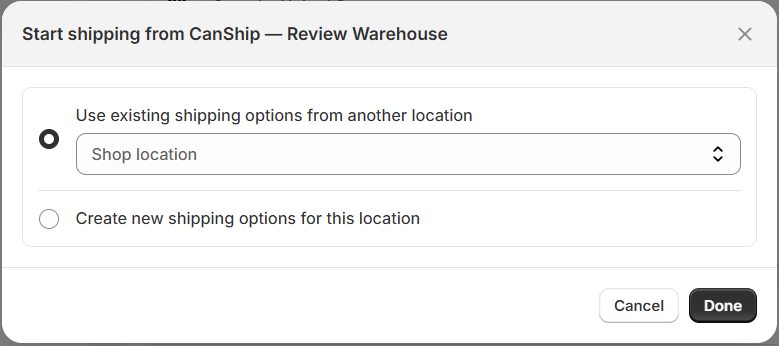
- Under "Not fulfilling from", click Start shipping next to the CanShip location.
- Choose Use existing shipping options from another location and pick the location whose rates CanShip should use, or choose Create new shipping options for this location. Click Done.
- The CanShip location moves up to Fulfillment locations.
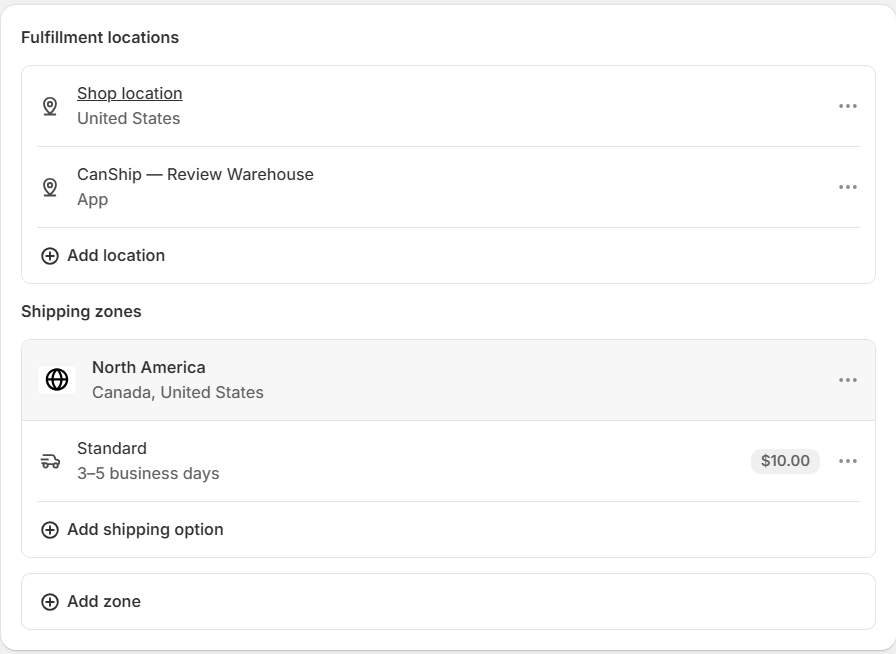
- If CanShip should be the only location that ships, click the three dots beside your own location, choose Manage location, then Don't ship from this location and Done.
- Check that the profile's shipping zones include every country you ship to.
- Click Save.
If no location on the profile ships yet, Start shipping opens Create new shipping zone in place of that choice. Name the zone, tick the countries you ship to and click Done, then give the shipping option a name, a price and a transit time.
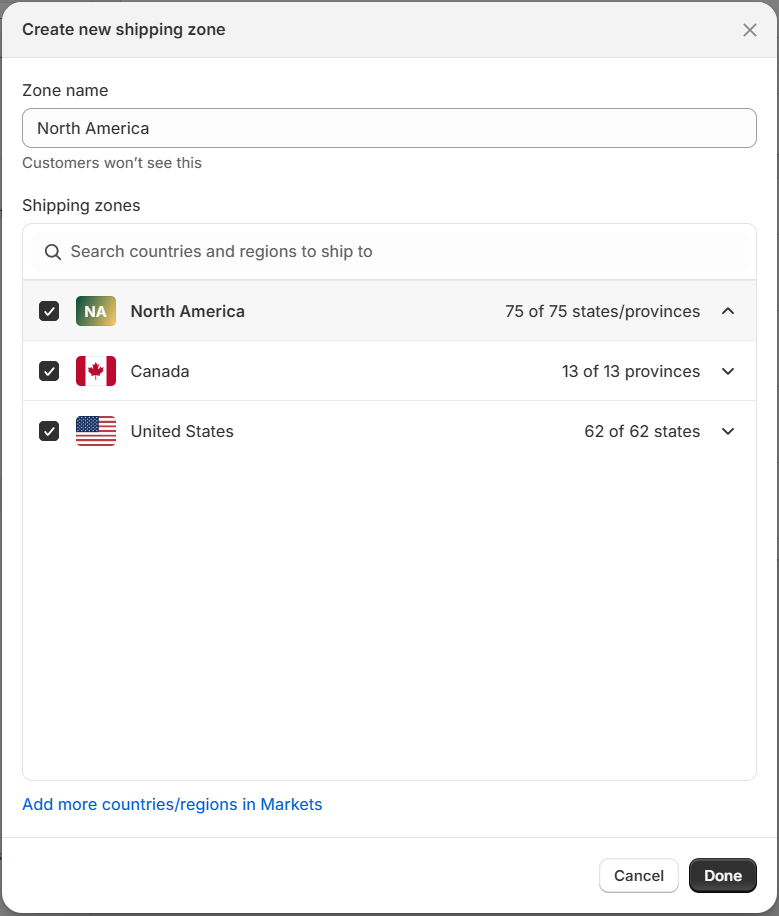
A store on the Markets screen has a Switch back button on the Shipping card, which returns it to this one.
5. Bring your products into CanShip
- In CanShip, go to Integrations > Channels. On the store's card click Sync, then Sync Products.
- The preview lists every variant that has a SKU under All syncable. No SKU lists the ones that will be left out. A SKU that CanShip already holds for this client reads Links to existing: the sync links the two and nothing is duplicated. A listing that was synced before reads Update and is refreshed.
- Under Update these fields, untick anything CanShip should keep as it is.
- Click the Sync button at the bottom. It says how many variants it will sync.
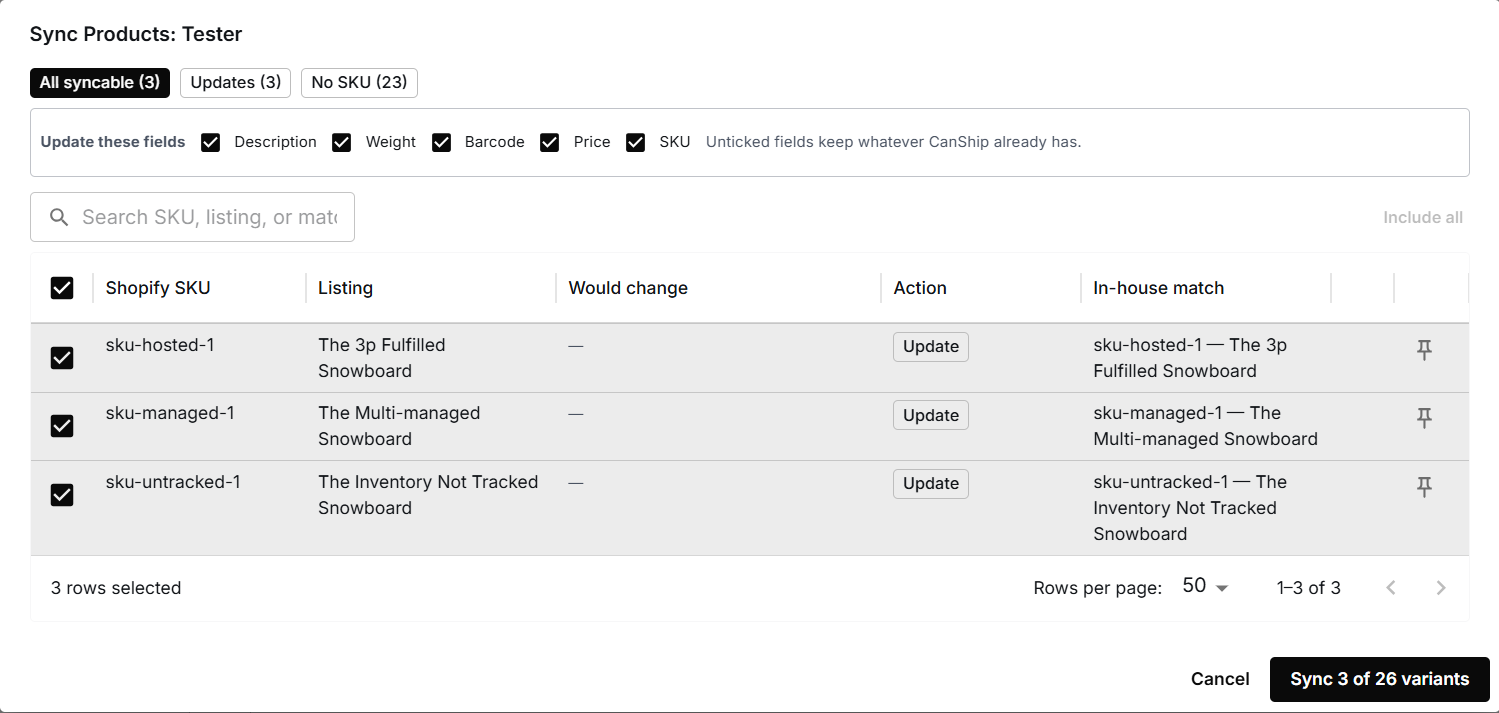
The products now appear under Catalog > Products. They need stock in CanShip before orders can be allocated. See Receiving inventory with a receipt or Importing opening inventory by CSV. Because stock sync is on, CanShip's count is the number Shopify holds at the CanShip location, so receive your stock in CanShip before you sell from it.
6. Check it with a test order
- In Shopify, create an order for a product you stocked at the CanShip location.
- On the order page, the location on the fulfillment card should be the CanShip location.
- In CanShip, the order appears under Orders within seconds, under the store's client.
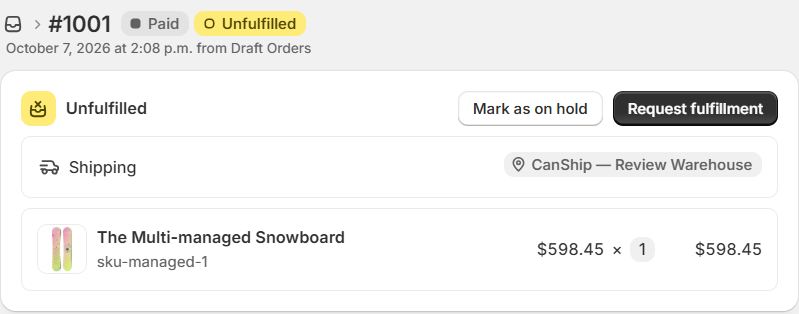
You do not need to click Request fulfillment in Shopify. When the label is bought in CanShip, Shopify marks the order fulfilled and adds the carrier and tracking number, and the count at the CanShip location drops.
Store settings in CanShip
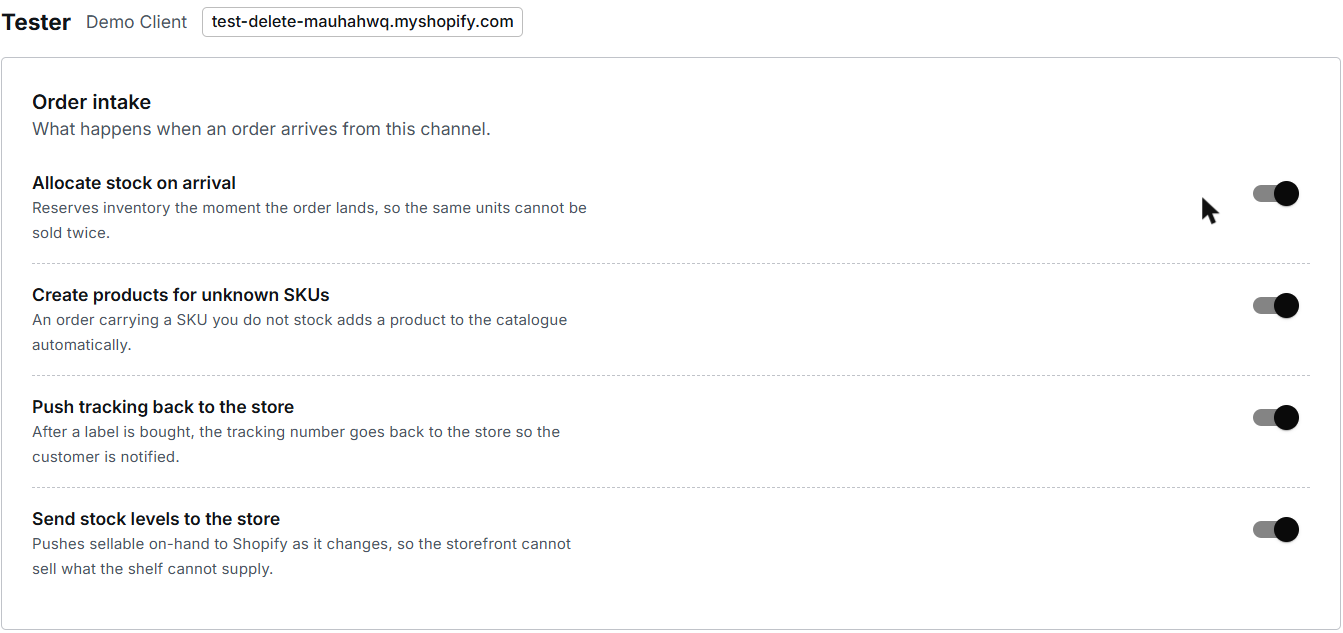
On the store's card, Settings opens four switches under Order intake.
- Allocate stock on arrival reserves inventory the moment the order lands.
- Create products for unknown SKUs adds a product to the catalogue when an order carries a SKU you do not stock.
- Push tracking back to the store sends the tracking number to Shopify after a label is bought, so the customer is notified.
- Send stock levels to the store pushes sellable on-hand to Shopify as it changes.
Below the switches, Shipping speeds lists what each of the store's shipping options promised the customer. See Delivery promises: shipping an order by its Deliver by date.
When the store has sent CanShip something in the last 24 hours, the same page also has Recent activity, which counts what arrived: received, imported and skipped.
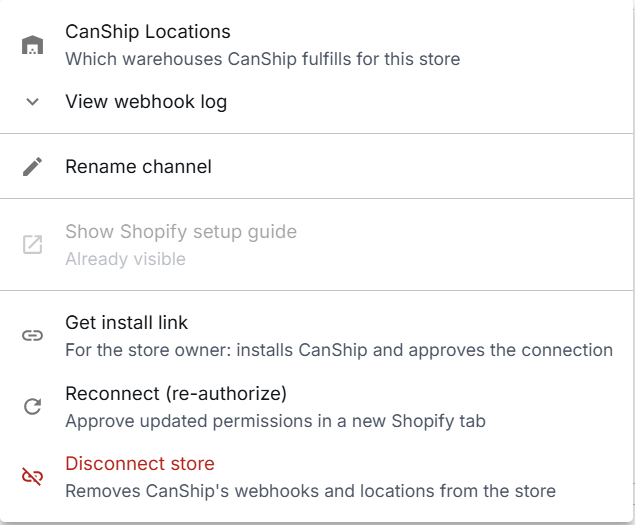
The gear on the card holds the rest: CanShip Locations, View webhook log, Rename channel, Get install link, Reconnect (re-authorize) and Disconnect store. Disconnecting unregisters the store's webhooks and removes its CanShip location, with the same limit: Shopify keeps a location that still holds stock or has open orders. The store leaves the Channels page, and orders already imported stay in CanShip.
What can go wrong
- An order stays in Shopify and never reaches CanShip. The product is not stocked at the CanShip location. Do step 3. In CanShip, Integrations > Integrations Health > Find an order says whether CanShip received an order and why it is not in Orders.
- Shopify says "Shipping and delivery options are not available for this customer's address". The CanShip location is not on a shipping rate for that country. Do step 4.
- A product is missing from the Sync Products preview. It has no SKU in Shopify. Look under the No SKU tab, add a SKU in Shopify, then sync again.
- The order arrives in CanShip but is not allocated. CanShip has no stock for that SKU. Receive it.
See also: How orders flow between Shopify and CanShip and Checking integration health.
Was this article helpful?
That’s Great!
Thank you for your feedback
Sorry! We couldn't be helpful
Thank you for your feedback
Feedback sent
We appreciate your effort and will try to fix the article
