If you'd like to ship on your own FedEx account through CanShip, you'll generate a pair of API credentials (a Client ID and Client Secret) from FedEx's Developer Portal and hand them to your CanShip onboarding contact. CanShip then creates rates and labels directly on your FedEx account, using your negotiated rates. Plan for 30 to 45 minutes if you've never used FedEx's Developer Portal before.
Prefer not to manage your own credentials? You can also ship on CanShip's FedEx account, just let your onboarding contact know. This guide is only for clients who want to use their own FedEx account.
Before you start, have handy:
- Your FedEx.com login (the one tied to your FedEx shipping account)
- Your 9-digit FedEx account number
- Your company billing address EXACTLY as FedEx has it on file. This matters more than you'd expect: FedEx validates it character for character. The safest source is a recent FedEx invoice; if in doubt, call FedEx and ask them to read it back verbatim, including any unit numbers and how they're placed.
Step 1: Sign in to the FedEx Developer Portal
Go to developer.fedex.com and click Sign Up (or Log In). Your regular FedEx.com credentials work here.
Step 2: Create your organization (first visit only)
If your company is new to the Developer Portal, My Projects will tell you that you need an organization before you can create projects. Click "Create an Organization."
- For "I work for a company that:" choose "Ships with FedEx and needs to integrate FedEx APIs into their system."
- Fill in your company name, company website, an organization name (your company or brand name is fine), and the country where your company is incorporated.
- Click Create.
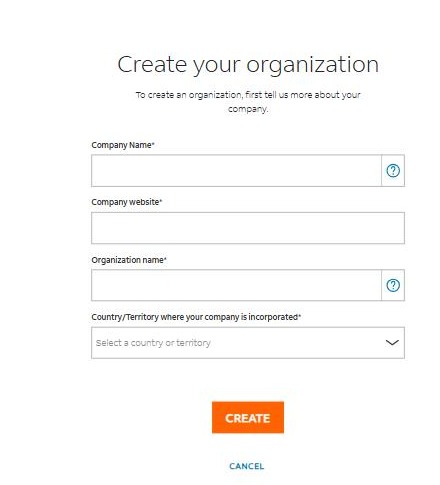
Heads up: the portal can be slow for a few minutes right after creating an organization. If pages sit on a spinner, wait a bit and reload rather than starting over. Your organization was created; the portal is just catching up.
Step 3: Create the API project
From My Projects, click "+ Create API Project."
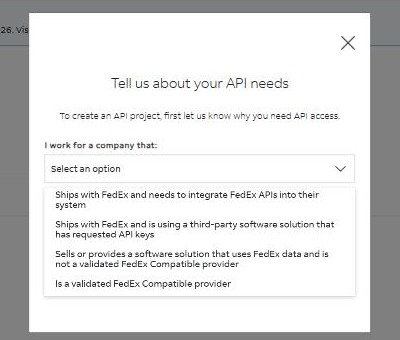
- For "I work for a company that:" choose "Ships with FedEx and is using a third-party software solution that has requested API keys."
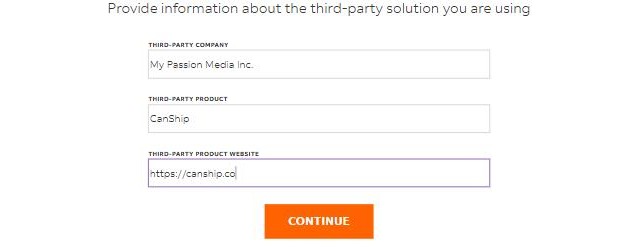
- On the third-party solution page, enter: Third-party company "My Passion Media Inc.", Third-party product "CanShip", Third-party product website "https://canship.co".
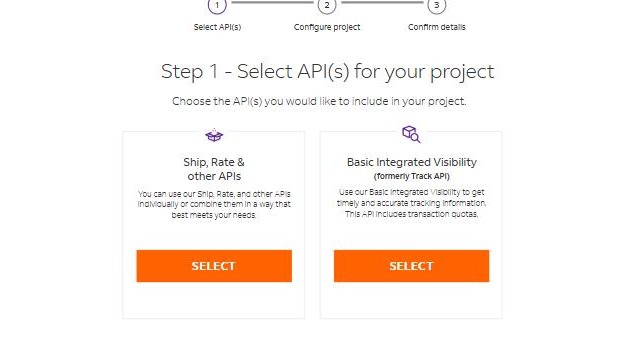
- On the Select API(s) step, choose the "Ship, Rate & other APIs" bundle, then check "Ship API" and "Rates and Transit Times API" in the list below. (The portal offers only one bundle per project; you do not need the Basic Integrated Visibility bundle.)
- Name the project (for example "CanShip"), and select the country or territory you ship from so FedEx can assign a test account.
- On the confirm step, review the details and accept the terms checkboxes, then click Create.
If your session times out partway through (the portal does this), log back in. Completed steps are saved; you may just need to restart the wizard from where the portal left you.
Step 4: Add your FedEx shipping account
Open your project, switch to the "Production Key" tab, and when the key setup asks you to select a shipping account, click "Add Shipping Account."
- Enter your 9-digit FedEx account number and a nickname.
- Enter your company billing address exactly as FedEx has it on file (see "Before you start").
- Click Next. If you see "Account Validation Failed," see Troubleshooting below; this is almost always the billing address.
- Accept the FedEx End User License Agreement when prompted.
Step 5: Get your production credentials
Back on the Production Key setup, select your newly added shipping account and continue. FedEx issues your production key pair:
- The API Key is your Client ID.
- The Secret Key is your Client Secret. FedEx shows the secret ONCE. Copy both values immediately; if you lose the secret, you'll have to regenerate a new one.
(You'll notice a Test Key tab as well. You can ignore it; it's for software developers.)
Step 6: Send the credentials to CanShip
Provide your onboarding contact with:
- Client ID (Production API Key)
- Client Secret (Production Secret Key)
- FedEx account number
- Your ship-from address (name, phone, street, city, province/state, postal, country)
Share the Client Secret through the secure channel your CanShip contact provides. Treat it like a password. Don't send it in plain-text email.
What happens next
CanShip configures your carrier account and verifies it with a live rate check, at which point FedEx rates on your negotiated pricing appear for your shipments. FedEx separately requires a one-time approval on the CanShip side before new credentials can purchase live labels; your onboarding contact will confirm when your account is label-ready and handles that process with FedEx. If you were previously shipping on CanShip's FedEx account, your own account takes over automatically once everything is confirmed.
Troubleshooting
- "Account Validation Failed" when adding your shipping account: the portal checks four things: the number is 9 digits, the billing address matches FedEx's file, the account is not cash-only, and the account is active. In practice it's nearly always the address. Pull it from a recent FedEx invoice or call FedEx and ask for the verbatim rendering; quirks count (a unit number embedded in the street line must be typed that way). If FedEx customer service just changed your address, their validation system can lag well beyond a few minutes; try again later.
- Portal pages spin forever right after creating your organization: known behavior. Wait a few minutes and reload.
- Session timed out mid-wizard: log back in; completed steps persist.
- "Account not eligible / not found" when moving to production: your FedEx account may need API access enabled. Contact FedEx Technical Support at 1-877-339-2774.
- Rates come back empty in CanShip: the ship-from address must match FedEx's records exactly.
- Shipping fails with "Phone number is empty": FedEx requires a recipient phone number on every shipment. Add a phone number to the order's Ship To address and try again.
- The connection test passes but creating a label fails: the connection test verifies rating only. Creating (and voiding) labels uses FedEx's Ship API, which stays locked until FedEx's one-time approval of CanShip's credentials is complete. Your onboarding contact will confirm when your account is label-ready.
Was this article helpful?
That’s Great!
Thank you for your feedback
Sorry! We couldn't be helpful
Thank you for your feedback
Feedback sent
We appreciate your effort and will try to fix the article