Applies to: All tiers · Last reviewed: 2026-10-11
What this is
The core daily loop, from an allocated order to a label and tracking. The path is the same whether the order came from Shopify, Amazon, Extensiv, or the Manual Orders channel: order in, pick, pack, ship, tracking out.
1. Pick
- In Orders > Orders, select the orders to fulfill. An order has to be fully allocated and marked Ready before it can join a pick job. If it is still Open, select it and choose Actions > Mark ready first (use Allocate inventory if it is not fully allocated).
- With your Ready orders selected, choose Actions > Add to pick job. Start a New Pick Job (you can name it and leave instructions for the picker) or add to an Existing Pick Job, then Confirm. If the orders you selected are in more than one warehouse, CanShip asks which warehouse first, so the job stays scoped to one building. CanShip tells you if any selected order was skipped, and why.
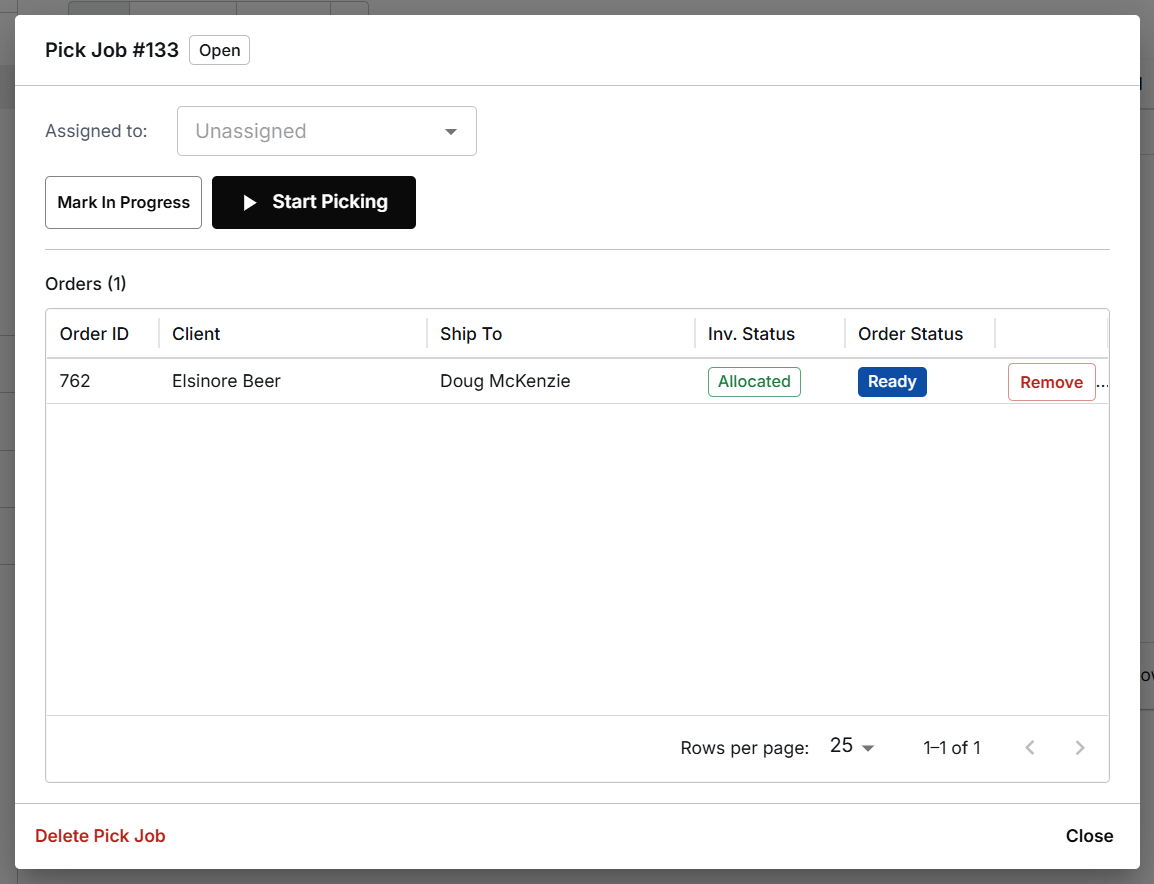
- Find the job under Fulfillment > Pick Jobs, open it and click Start Picking. The first screen says how many orders, stops and units the job has, and What's in this job lists the bins. Pick this job assigns it to you. CanShip sorts the stops by warehouse location to cut walk time, and you can batch several orders into one job.
- At each stop, confirm you are at the right bin by typing or scanning its name. CanShip refuses a different bin and shows the one it expected.
- Scan each item's barcode, or type its SKU. The line counts up as you go. An item that belongs to another stop is not counted, and CanShip tells you which bin it is in.
- The first time you pick for an order, CanShip asks for the bin you are putting its items in. Scan or type it. That becomes the order's bin, and later picks for the order ask you to scan it again to confirm. When several orders share a stop, CanShip asks for each order's bin in turn.
- Click Next Location after each stop and Finish Picking after the last. The summary lists what is in each bin. Mark Job Complete closes the job on one press and returns you to Pick Jobs. If a unit was reported missing, the summary says so and names it, for example Picking finished: 1 unit could not be found.
Progress is saved as you go. If the page reloads part-way, the job comes back with what you have already scanned and shows only the stops still to pick. If you started from Fulfillment > Start Picking, the reload opens your list of jobs: open the job again, and confirm the bin you are at.
If an item is not on the shelf, click Can't Find on its line. See When a picker cannot find an item.
To give a job to one picker, open it under Fulfillment > Pick Jobs and choose them under Assigned to. They find it under Fulfillment > Start Picking, in My Jobs. The job reads In Progress from the moment they start it.
To take an order out of a job that is Open or In Progress, open the job and click Remove beside the order, or select the order in Orders > Orders and choose Actions > Remove from pick job. The order's own window has the same button. The order keeps its allocation and reads Ready. If it was already picked, CanShip asks first, then releases its tote and names the bin to put its units back in. A job In Progress that is left with no orders is completed. A Complete job works the same way for an order that has not shipped, and its other orders are not touched. An order that has shipped stays in its Complete job.
2. Pack
- Go to Fulfillment > Packing and scan the order's bin, or choose it under Available Bins. The number beside each bin is how many units are in that tote.
- Choose the container, then scan each item into it or click Assign All. An item that is not on the order is refused, and CanShip says what is still to pack.
- If the order needs more than one parcel, click Add another and choose the next container. One line can be split across parcels. Ship All then takes each parcel through its weight and rates in turn, and each gets its own label. You can also Save one parcel and ship another first: the saved one stays on the station with its own Ship.
- Click Ship on the container (or Ship All for several) to go to the Weight step. Check or enter the parcel's weight and dimensions. The weight shown is estimated from the products and the container until you use Override Weight. Tick These are this parcel's actual dimensions and weight, then click Confirm and Get Rates. If a product has no weight on file, the station says the weight shown is not the whole parcel, and you enter the parcel's weight.
- Print packing slip is at the top of the Weight and Rate & Ship steps, in English or French.
Each of these steps is covered in Packing an order.
3. Ship
- CanShip rate shops across your connected carriers (Canada Post, UPS, FedEx, FleetOptics, and others) and shows the options.
- Rates and the Ship button stay hidden until every problem on the shipment is resolved, so you cannot ship an order that still has an unresolved error.
- Pick a rate and click its Ship button. CanShip buys the label and saves the tracking number. When the order's last parcel has its label, the station reads Order Complete and lists each parcel with its contents, carrier and tracking number, with Reprint Label and Void label on each, and Print All Labels when there is more than one. Scan the next bin, or click Next Bin, to carry on.
- Tracking writes back to the order's sales channel automatically, so a Shopify or Amazon customer gets the normal shipping notification.
- An order with labels on some of its units reads Partly Shipped and stays on the Active tab. When its last unit has a label it reads Shipped and moves to the Shipped tab.
At the end of the day, close your carrier manifests so the parcels are formally accepted. See "How to print a Canada Post end-of-day manifest".
Where an order's bin is
Fulfillment > Bins lists every bin that is holding a picked order, with its order, client and pick job. Click a bin to see the items in it.
While some of an order's units are still loose in its tote, the Shipped column shows how much of it has gone, for example 1 / 2, and the packing station shows the same beside the bin under Available Bins. Once every unit is in a box, saved or shipped, the order moves to Packed, Not Shipped at the packing station and leaves this list. It keeps the tote until its last box ships.
What can go wrong
- The Ship button is missing. The shipment still has an unresolved error (for example, a missing weight or an address problem). Resolve the flagged issue and the rates and Ship button appear.
- An order will not pick. It may be unallocated (no stock on hand) or assigned to a different warehouse. Check the order's inventory status and assigned warehouse.
- A carrier shows no rates. CanShip shows what the carrier said, with Retry. The other carriers' rates are still listed, so you can retry or ship with another carrier.
- The order has no delivery phone number. Some carriers will not print a label without one. The rates step says which, and offers Add phone number.
Was this article helpful?
That’s Great!
Thank you for your feedback
Sorry! We couldn't be helpful
Thank you for your feedback
Feedback sent
We appreciate your effort and will try to fix the article