Applies to: All tiers · Last reviewed: 2026-10-11
What this is
A SKU mapping connects an external code from a sales channel (a storefront SKU, or an Amazon ASIN) to one or more of your warehouse products. There are two kinds:
- Alias: one external SKU resolves to exactly one product, quantity 1. Use this when a channel's SKU differs from your internal SKU.
- Bundle: one external SKU fans out to several products, or to a single product with a quantity greater than 1. This is a kit.
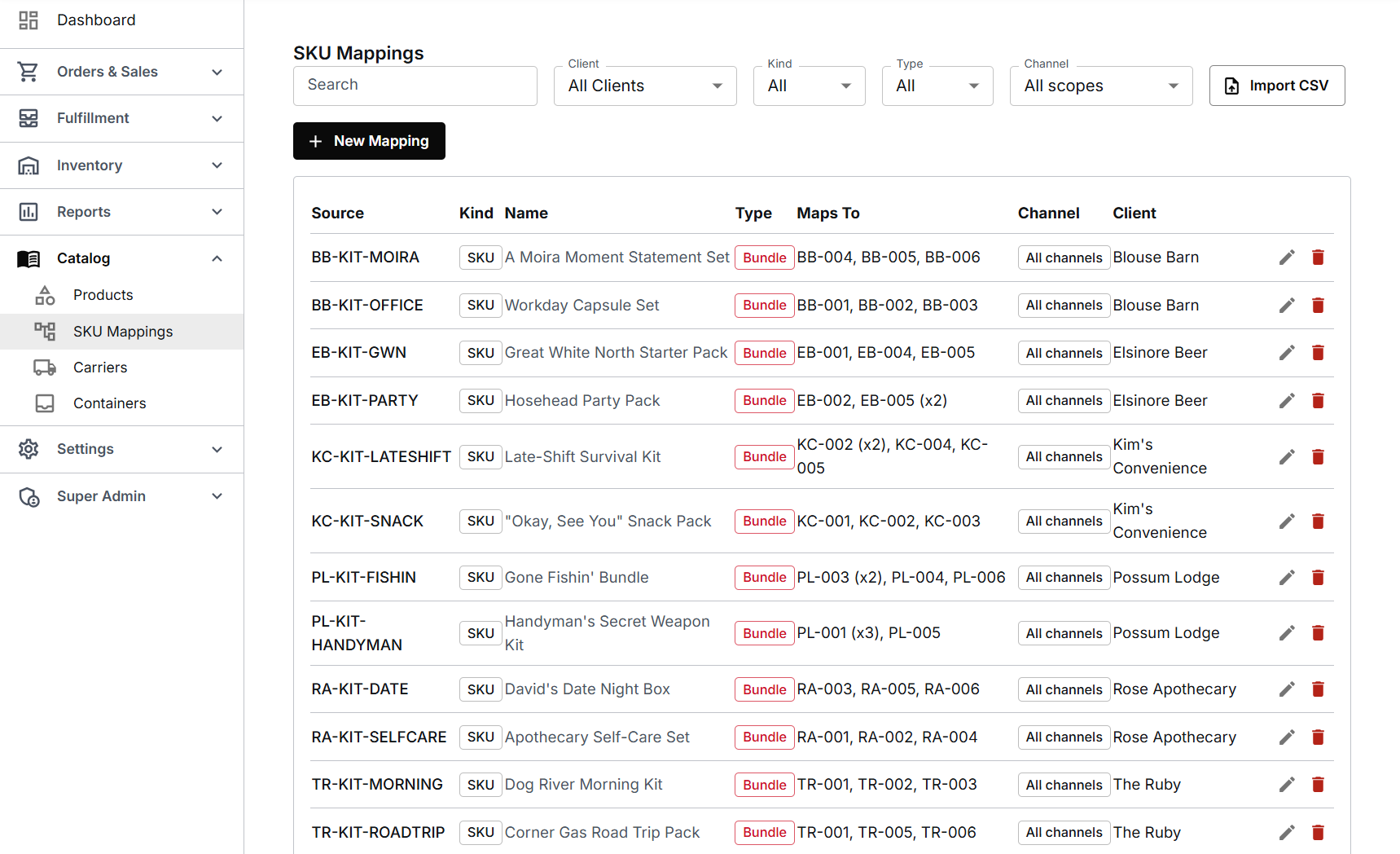
Find them at Catalog > SKU Mappings. The list shows each mapping's source code, its kind, its name, whether it is an Alias or a Bundle, what it maps to, its channel and its client. The pencil on a row edits the mapping.
Create a bundle or alias
- Catalog > SKU Mappings > New Mapping.
- Client (required): pick the owning client first. The component product search is scoped to that client's catalogue, so choosing the client first is what makes products searchable.
- Identifier kind: SKU (default), ASIN (for Amazon), or Variant pin (for Shopify). A variant pin takes the listing's numeric Shopify variant id and matches that exact listing whatever its SKU. It has to be scoped to one channel, because variant ids belong to one store.
- Source SKU (external): the external code, for example the storefront SKU.
- Channel scope (optional): leave blank to apply to all of the client's channels, or pick one channel.
- Name (optional): a friendly display name, for example "Holiday Gift Set".
- Component products: for each component, search the Product (type the SKU) and set the Qty. Click + Add Component for each additional product. One component at quantity 1 is an alias; multiple components, or any quantity above 1, makes it a bundle.
- Click Create. The Maps To column lists the component SKUs, with
(xN)for quantities.
Using a mapping on a manual order
Mappings also work when you key an order by hand. In New Order, type the bundle's or alias's code in Add product. Bundles and aliases are listed under their own headings, each marked Bundle or Alias. Choose one and click Add:
- A bundle adds one line for each of its products.
- An alias adds the product it stands for. If that product is already on the order, its quantity goes up by one.
Import mappings by CSV
Catalog > SKU Mappings > Import CSV, one client per import. Columns: source_sku, target_sku, quantity, kind, sales_channel_id. Rows that share a source_sku form one bundle. quantity defaults to 1, kind defaults to sku (use asin for Amazon), and a blank sales_channel_id applies to all channels. There is no name column in the CSV, so add display names afterward from each mapping's Edit action.
Was this article helpful?
That’s Great!
Thank you for your feedback
Sorry! We couldn't be helpful
Thank you for your feedback
Feedback sent
We appreciate your effort and will try to fix the article